Article
25
Aug 2026
Blog
PixelCart Media Library: Filters, Search & Catalog Features for Photographers
Explore PixelCart’s Media Library—gallery filters, nested categories, full-text search across tags, SKU and IPTC, bulk editing, sorting, and tools built for large photography catalogs.
When you sell event or sports photography, the hard part isn’t only capturing the images.
It’s managing them.
A single marathon, tournament, or school sports day can produce thousands of photos. Multiply that across a season, multiple photographers, and contributor uploads, and your catalog quickly becomes too large to browse by hand.
PixelCart’s Media Library is built for that reality. It gives photographers, agencies, and studio admins one workspace to find, filter, organize, publish, and bulk-edit media at scale.
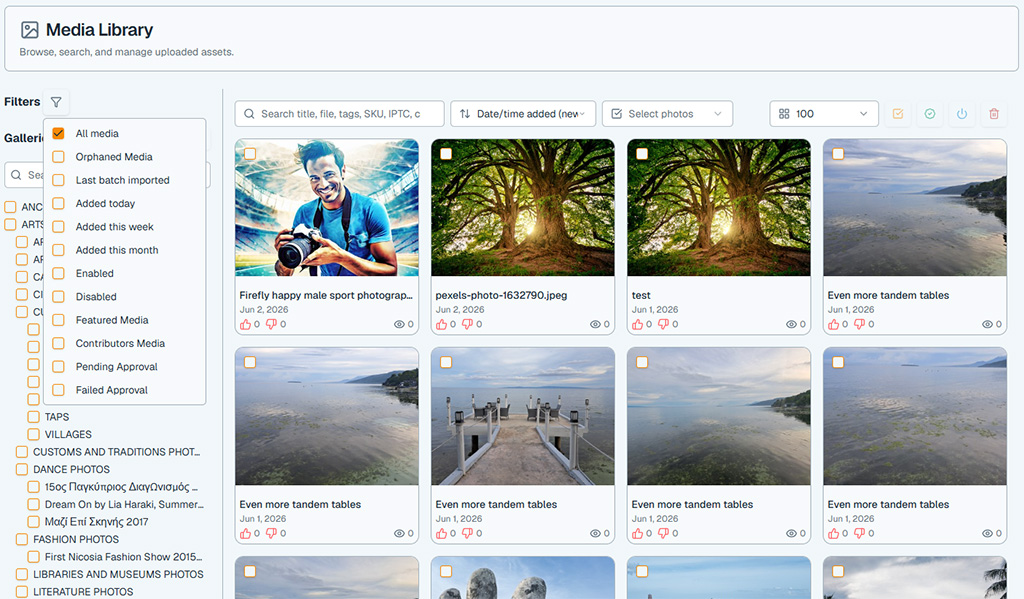
What Is the Media Library?
The Media Library is PixelCart’s admin catalog for every photo in your store.
From one screen you can:
- Browse your full media catalog in a responsive grid
- Narrow results with sidebar filters
- Select nested galleries and categories
- Search titles, file names, tags, SKU, IPTC, and contributors
- Sort by date, title, views, or likes
- Edit individual photos or update many at once
- Approve contributor uploads and control what appears on the storefront
It is the day-to-day command center for your photography catalog—especially when volume is high.
Useful Filters for Large Catalogs
Filters are where the Media Library saves the most time.
Instead of scrolling endlessly, you can jump straight to the slice of the catalog you need:
- All media — your full library
- Orphaned media — photos not yet placed in any gallery
- Last batch imported — refine the most recent upload session
- Added today / this week / this month — review recent work by date range
- Enabled / Disabled — control storefront visibility
- Featured media — highlight hero or promotional images
- Contributors media — focus on partner or community uploads
- Pending approval / Failed approval — clear moderation queues
These filters are especially useful after a big upload weekend, when reviewing contributor submissions, or when cleaning up assets that never got assigned to a gallery.
Gallery Filters & Nested Categories
Event photography is rarely flat. Galleries are nested: seasons, venues, race distances, age groups, checkpoints, teams, and more.
The Media Library includes a searchable gallery multi-select tree so you can:
- Browse nested categories
- Select one or many galleries at once
- Combine gallery selection with sidebar filters
- Focus on a single event branch without losing the rest of the catalog
That structure mirrors how real photography businesses organize work—and keeps large libraries usable as they grow.
Search Across Titles, Tags, SKU & IPTC
Filters narrow the set. Search finds the needle.
PixelCart’s Media Library search looks across:
- Titles
- File names
- Tags
- SKU / job codes
- IPTC metadata
- Contributor names
That means you can locate images by race bib workflow, job code, photographer credit, embedded IPTC fields, or the tags you apply at upload time—without relying on memory or folder names alone.
For studios that import metadata from cameras or batch-tag uploads, this turns catalog work into something searchable and repeatable.
Sort by Date, Engagement & Title
Once you’ve filtered and searched, sorting helps you prioritize what to act on next.
You can sort media by:
- Date added (newest or oldest first)
- Title (A–Z or Z–A)
- Most or least viewed
- Most or least liked
- Most or least disliked
Views and likes are useful when you want to feature strong performers, audit underperforming galleries, or decide what to promote on the homepage.
Grid View Built for High Volume
The Media Library presents your catalog in a clear grid so you can scan thumbnails quickly.
You can:
- Adjust page size (and keep your preference)
- Select visible photos or select all matching results in a gallery context
- Star thumbnails to toggle Featured
- Open any photo into a detailed edit modal
The goal is simple: work through hundreds or thousands of images without feeling buried.
Bulk Selection & Bulk Editing
Volume photography lives or dies by bulk tools.
With multiple photos selected, the Media Library lets you:
- Bulk edit titles, SKUs, descriptions, tags, dates, copyright, usage notes, and gallery membership
- Set, add, or remove tags and galleries in one pass
- Leave fields unchanged when you only need a partial update
- Approve or Disapprove for moderation workflows
- Enable or Disable storefront availability
- Delete selected assets (with confirmation; large deletes can run in the background)
After a race weekend, that means you can place an entire batch into the right galleries, tag them consistently, publish what is ready, and hold back what still needs review—without editing photos one by one.
Edit Photo Details When You Need Precision
Bulk tools handle volume. Individual edit handles precision.
Opening a photo gives you tabs for:
- Details — title, slug, SKU, description, tags, dates, active/featured flags
- Advanced — copyright, usage restrictions, and related metadata
- Galleries — membership across your nested gallery tree
You can also download the original and jump to a storefront preview when available. Orders and reports can deep-link straight into the edit modal for a specific photo, so sales and catalog work stay connected.
Built for Contributor & Moderation Workflows
If your store accepts uploads from contributors or partner photographers, the Media Library is where moderation happens.
Use Pending Approval and Failed Approval filters to review submissions, then bulk approve what should go live. Combine that with Contributors Media when you need to audit partner catalogs separately from your own shoots.
That keeps community or agency content flowing without giving up control over what customers see.
A Practical Workflow After a Big Upload
A typical post-event workflow looks like this:
- Upload the batch in Add Media with shared tags, SKUs, and target galleries.
- Open the Media Library and filter to Last batch imported.
- Search or refine by gallery if needed.
- Bulk-edit any remaining titles, tags, or gallery placements.
- Enable or approve what is ready for the storefront.
- Star featured shots for homepage or promotional modules.
- Use Orphaned media later to catch anything that slipped through without a gallery.
The same pattern works for weekly school sports, multi-day festivals, and agency contributor drops.
Why the Media Library Matters for Photography Businesses
Most gallery platforms are designed around browsing albums.
PixelCart’s Media Library is designed around running a photography business catalog:
- Find anything fast
- Filter by status, date, gallery, contributor, or approval state
- Search real metadata—not just filenames
- Bulk-update at scale
- Keep nested event structures tidy
- Publish with intention
When your library grows from hundreds of images to tens or hundreds of thousands, those tools stop being “nice to have” and become essential.
Get More From Your Catalog
If you’re managing high-volume event, sports, school, or contributor photography, PixelCart’s Media Library gives you the filters and features to stay in control.
Browse with gallery filters and nested categories. Search across tags, SKU, and IPTC. Sort by date or engagement. Bulk-select, edit, approve, and publish—from one workspace.
That’s how a modern photography storefront keeps pace with the shoot.